A Furrion backup camera usually says “no signal” because the camera isn’t getting 12V power, the monitor is on the wrong channel, or a wireless camera has lost its pairing or range. Start by checking power and the monitor settings, since those cause most cases. Then work through pairing, wiring and the hardware itself.
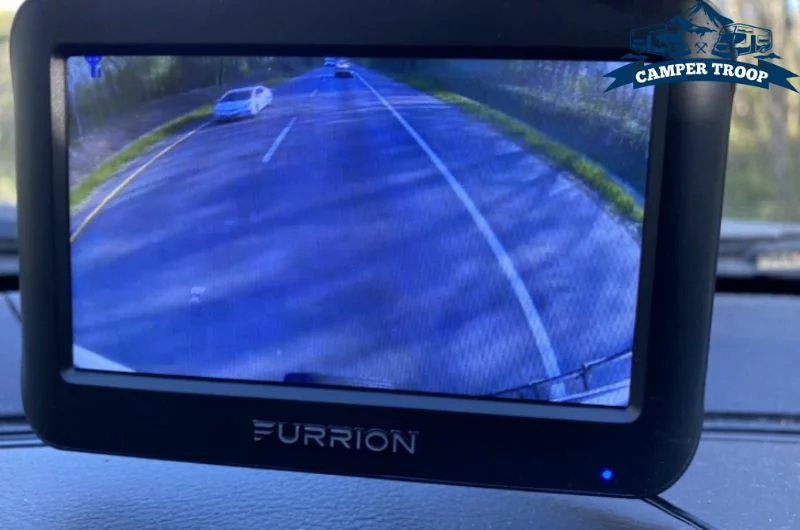
Why Does My Furrion Backup Camera Say No Signal?
“No signal” means the monitor is on but isn’t receiving video from the camera. The likely causes depend on your system type.
- Wireless systems (such as Vision S): These are most often caused by no power at the camera, the wrong monitor channel, a lost pairing, too much distance or interference.
- Wired systems: These are most often caused by a loose, damaged or corroded cable or connector, or no power reaching the camera.
- Both: A failed camera or a failed monitor.
How Do I Fix No Signal on a Furrion RV Backup Camera?
Work through these checks in order. Keep your model’s user manual handy, because pairing and reset steps vary by model. If you’ve lost the manual, you can download it from the Lippert Furrion support center.
1. Confirm the Camera Is Getting 12V Power
A camera with no power can’t send a signal. Check whether your camera is wired to the running (marker) lights or to the reverse lights. If it’s on the running-light circuit, the camera only works when the running lights are on. If it’s on the reverse circuit, it only works in reverse.
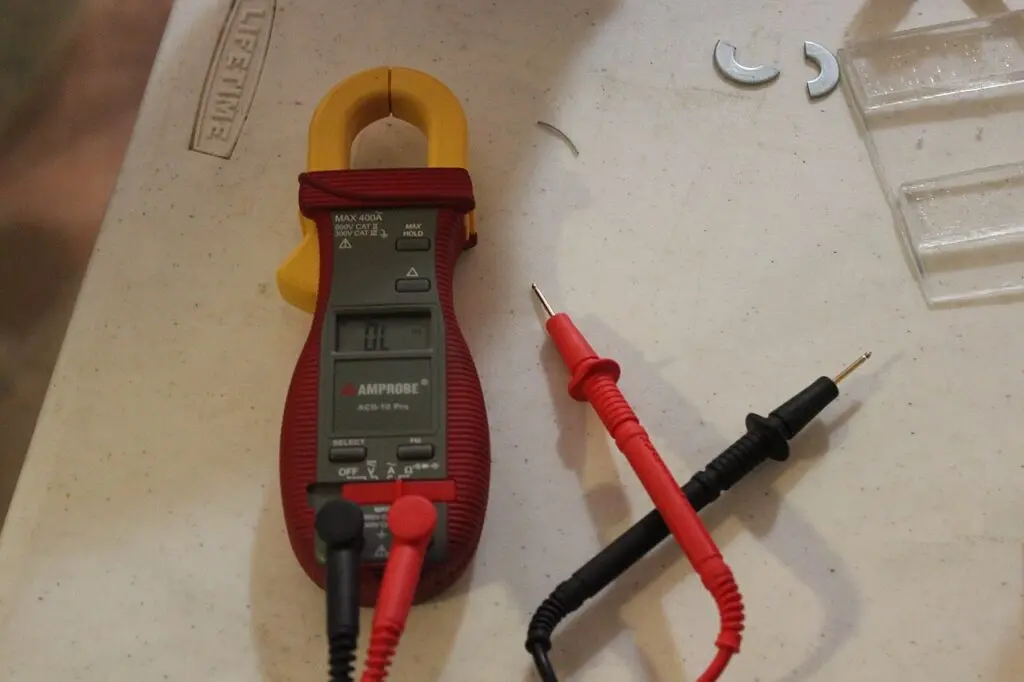
To test the power with a multimeter:
- Set the multimeter to DC volts.
- Turn on the circuit the camera uses. Switch on the running lights, or set the parking brake and shift into reverse.
- Make sure the RV’s marker or reverse lights actually come on.
- Touch the red probe to the camera’s power lead and the black probe to its ground.
- Look for a reading of roughly 12V. A reading of zero or a very low number points to a blown fuse, a bad ground or a broken wire before the camera.
Read Also: Why Does My RV Have No Power From Battery? (Explained)
2. Check the Monitor’s Channel or Camera Selection
Many Furrion monitors can show more than one camera. If the monitor is set to a channel with no camera paired to it, you’ll see “no signal” even when everything works. Cycle through the channels or camera inputs and check each one before you do anything else.
3. Rule Out Range and Interference (Wireless Only)
Furrion wireless cameras use a 2.4GHz proprietary digital connection that locks to the display. Furrion says the Vision S was road-tested to stay connected up to 100 feet while driving, and up to nearly 500 feet in open areas. Real-world range can be shorter. Long fifth wheels and travel trailers, metal walls and other 2.4GHz devices like Wi-Fi routers and hotspots can weaken the signal.
To test it, park the tow vehicle and hold the monitor close to the camera. If the picture comes back up close, you have a range or interference problem, not a dead camera. Move the monitor to a spot with a clearer line toward the rear, or ask Furrion support whether a signal booster or antenna is available for your model.
4. Re-Pair the Camera to the Monitor (Wireless Only)
A wireless camera can lose its pairing after a power loss, a reset or a new monitor. Re-pairing usually means starting pairing mode on the monitor and powering up the camera within a short time window. The exact buttons and timing differ by model, so follow the pairing section in your manual. Make sure the camera has confirmed 12V power (step 1) before you try. A camera that isn’t powered won’t pair.
5. Inspect the Wiring
Identifying wiring issues is pretty simple. Wiring problems can come from improper installation or from twisted, damaged or bent wires.
On a wired system, follow the cable from the backup camera to the display screen and look for the break. Pay close attention to spots where the cable bends, passes through walls or runs under the chassis. Once you find the break, repair it. On a wireless system, inspect the camera’s power wires instead.
Use the user manual as a checklist for every wiring connection. If the wiring was done correctly, one or more wires may have been damaged or come loose. If the system was installed with poor-quality cables, replacing them is the best fix.
6. Analyze the Connectors
The connectors can also cause no signal on a Furrion RV backup camera. Check your trailer connector pins. On a 7-pin connector, the yellow wire is the reverse wire. On a 4-pin connector, the yellow wire is the left turn signal.
Make sure every connection is correct and tight. All the connector pins should sit where they belong. If any pin is slightly out of place, gently move it back into position.
Connector pins are delicate and break easily if you use too much force, so check each one for damage. If a pin is broken, the only fix is to replace the connector.
Dust and grit can also build up in connectors if you camp in muddy or sandy areas. Buildup can weaken the connection between the camera and the display. Older systems are more prone to this problem.
7. Power-Cycle or Reset the Display
If you recently changed display settings, a setting may be causing the problem. Start with a power cycle. Turn the monitor off, disconnect its power, wait a moment and reconnect it.
If that doesn’t help, use the reset or factory-reset procedure in your model’s manual. A reset can clear the camera pairing, so plan to re-pair afterward (step 4).
Read Also: How to Turn On Backup Camera Sound: 3 Must-try Methods!
8. Check for a Damaged Display or Failed Camera
Some problems are left after you’ve confirmed power, checked the channel, re-paired the camera and reset the monitor. If you still get “no signal” at that point, the camera or the monitor has likely failed. A camera can stop working for several reasons:
- Failed electronics inside the device
- High moisture exposure that causes a short circuit
Check the warranty before you buy a replacement.
When Should You Call an RV Technician?
Call a technician when you have 12V at the light but not at the camera and can’t trace the break. You should also call one if the fix means running new wire through walls or the roof, or if you aren’t comfortable working on the RV’s electrical system. A technician can also test whether the camera or the monitor is the failed part, so you only replace one of them.
How Do I Contact Furrion for Support or Warranty?
Furrion support now runs through Lippert. According to Furrion’s support page, you can reach customer service at 432-LIPPERT (432-547-7378) or customerservice@lci1.com. For technical help, go to support.lci1.com/furrion. The old support@furrion.com address is now only for requesting a product manual you can’t find.
Describe the problem in detail and list the steps you’ve already tried. That helps the support team find a solution faster.
For warranty claims, you don’t need to register the product. Your original receipt or order number serves as proof of purchase. Warranty length varies by product and is listed in each product’s user manual. The warranty doesn’t cover faults caused by accident, neglect, misuse, improper installation or normal wear and tear.
Read Also: RV Anode Rod Socket Size: Which One & Why? (Chart Included)
FAQs
What frequency is Furrion’s backup camera?
Furrion wireless backup cameras lock digitally to the display using a 2.4GHz proprietary wireless connection. Furrion says this gives smooth, lag-free video. Other 2.4GHz devices and long distances can still affect the signal.
Where is the fuse on a Furrion backup camera?
The fuse location depends on your model and how the system is powered. Check the monitor’s power cord and plug, the RV’s 12V fuse panel and the user manual for your model.
Why is my Furrion RV backup camera not working?
If the picture is blurry or blocked rather than missing, dust, dirt, water, mud or moisture may have built up on the lens. Clean the lens with a soft, clean microfiber cloth. For heavier grime, use a cleaning solution, which removes most things that can block the view.
Final Words
Most “no signal” errors come down to power, the monitor channel, pairing or range, and you can check all of them yourself. Even with a working camera, don’t rely on it alone when reversing. Use your mirrors, and have a spotter guide you in tight campsites.